
Record short sessions while you draw.
Quickstart
Visualize creative work, then think through the next adjustment.
Draw Stats records creative activity automatically and turns it into Web stats you can review after each session.
What you can do
Record creative work, then review it on Web.
Draw Stats keeps the first setup simple: record a session from the app for your device, then check the numbers on the Web dashboard.
Check the dashboard, artworks, and timeline.
Use trends and comparisons to think about what to try next.
Device-specific steps
Open the guide for your drawing setup.
This part is the concrete setup guide. You can read only the device you actually use.
Required: Draw Stats for Mac + Draw Stats Capture
Use the Mac app for your account. Use Capture to record.
The Mac app handles sign-in, stats, artworks, and plan settings. When you draw on Mac, start Draw Stats Capture to record the session.
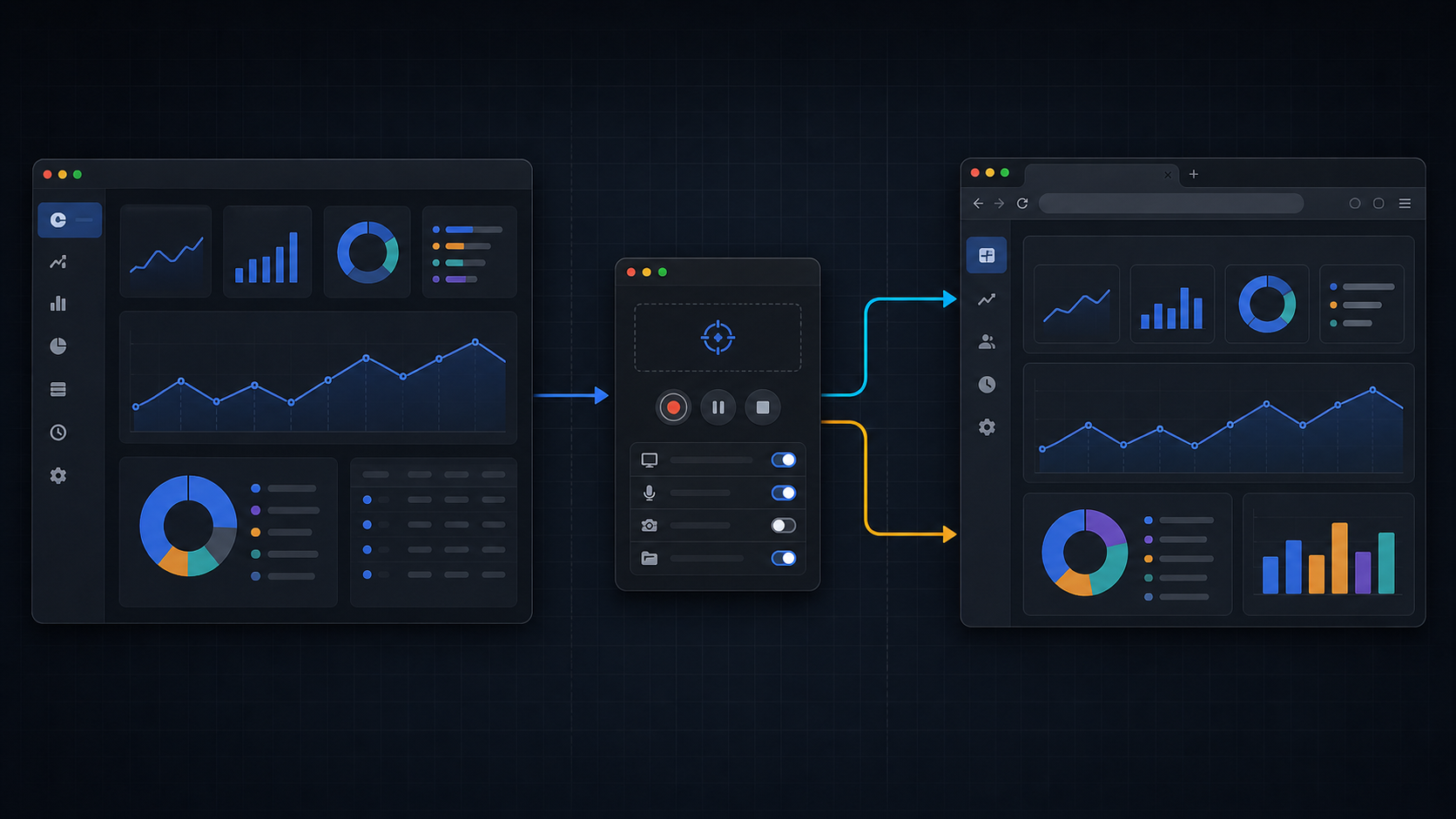
- Install the Mac app and Capture
Install both. The Mac app manages your account; Capture records desktop work.
- Sign in with one account
Use the same Draw Stats account in the Mac app, Capture, and Web.
- Start recording in Capture
Open Capture, choose an artwork, then record a short session.
- Confirm on Web
Open Web and check whether the dashboard changed.
Help
Need help?
Open the help center for setup and usage guides.